

Manage members and roles
Invite employees, assign the right role, and keep organization access current.
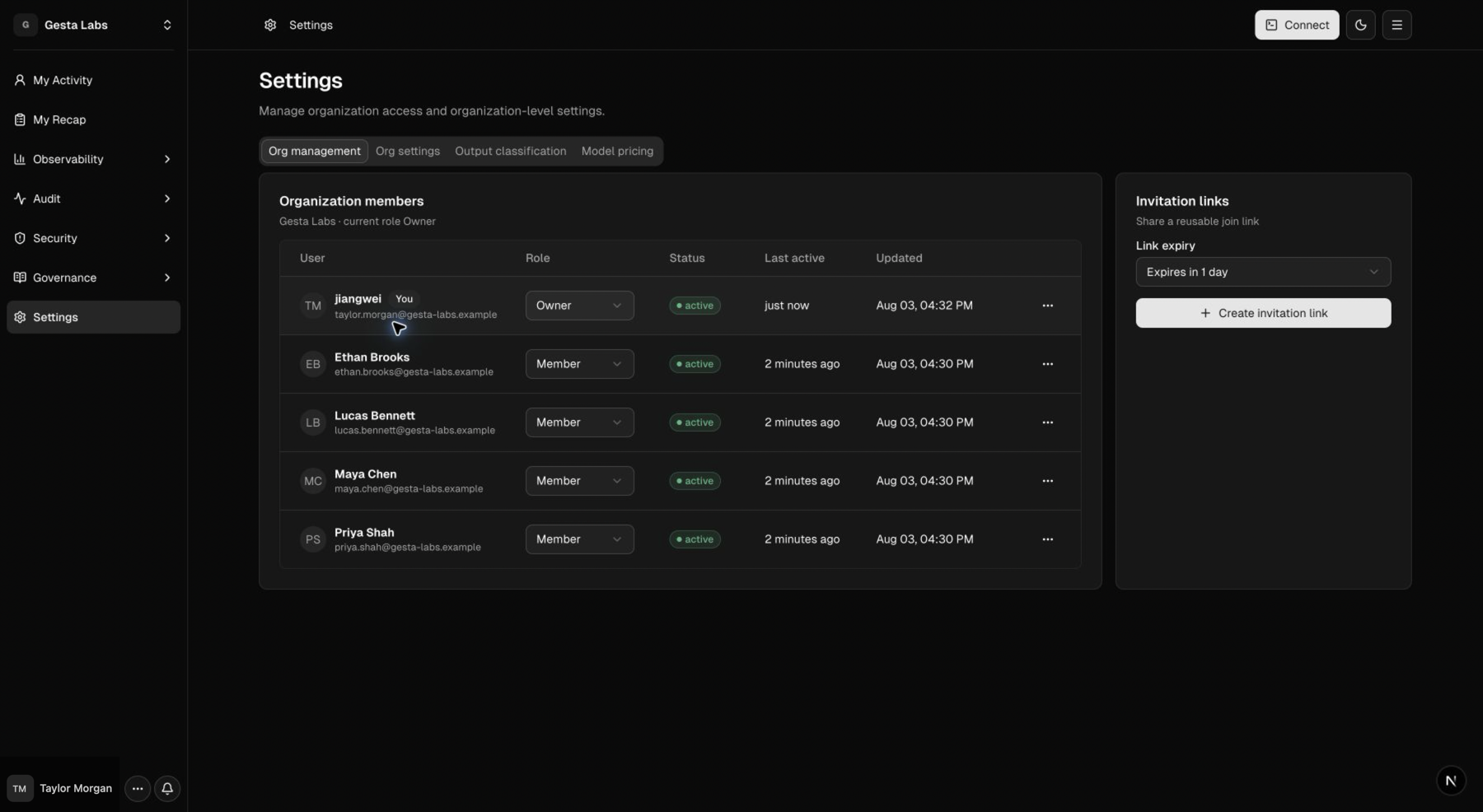
Organization members are the people who connect agents and use the Gesta Console. Owners manage membership, roles, and invitation links from Settings → Org management.
Choose the right role
| Role | Best for | Typical access |
|---|---|---|
| Member | Employees using AI agents | Connect machines and review their own My Activity and My Recap views |
| Owner | People operating Gesta for the organization | Manage members, rules, settings, approvals, and organization-wide views |
Keep the Owner role limited to people who need to change organization-wide behavior or review team data. Assign more than one Owner so access does not depend on a single person.
Invite employees
Create a Member invitation link and choose when it expires:
- 1 hour for a live onboarding session;
- 24 hours for a scheduled team rollout;
- Never only when the organization has a controlled way to distribute and revoke the link.
The full invitation link is displayed once when it is created. Copy it to an approved communication channel before leaving the page. Never include a live invitation link in documentation or screenshots.
Invitation links can be used by more than one employee. The link list shows acceptance activity so Owners can compare expected and actual onboarding. Revoke a link when its onboarding window ends or if it was shared outside the intended audience.
Review the member directory
Use the member table to check:
- name and email;
- Member or Owner role;
- current status;
- last active time;
- latest update;
- available administrative actions.
If an employee cannot see the expected organization, confirm that they accepted the correct invitation and signed in with the intended account.
Change a role
Promote a Member to Owner only after confirming that the person should manage organization-wide rules, approvals, settings, and activity. Review Owner access regularly, especially after team changes.
Before reducing an Owner to Member, confirm that another active Owner can still manage the organization.
Remove a member
Removing a member changes their access to the organization. Before continuing:
- confirm the exact person and account;
- review whether the employee still owns connected machines;
- transfer any operational responsibility;
- confirm that removal is required;
- use the Console confirmation to approve the removal.
Never remove a member based only on a similar display name. Verify the email address and organization first.
Recommended access review
On a regular cadence:
- remove invitation links that are no longer needed;
- confirm that every Owner still needs elevated access;
- investigate inactive members who still own connected machines;
- remove former employees only after confirming the target account and impact;
- keep an internal record of who approved access changes.
Next, connect employee machines and review the agent fleet.