

Connect an agent
Connect Codex CLI, Codex Desktop, or Claude Code to your Gesta organization and verify the runtime.
Each employee connects the machine where they use an AI agent. The connection belongs to that employee, so Gesta can deliver the correct organization settings and associate activity with the right person.
Supported environments
The published Gesta installer supports:
- Apple Silicon Macs;
- 64-bit x86 Linux machines;
- Codex CLI;
- Codex Desktop on macOS;
- Claude Code.
Use the installation command provided by your Console. It selects the release and settings intended for your organization.
Connect your machine
- Sign in to the Gesta Console as the employee who will use the machine.
- Select Connect in the top navigation.
- Wait for Gesta to prepare a secure connect token.
- Copy the installation command.
- Run it in Terminal as the user who runs Codex or Claude Code.
- Follow any request to restart or reopen the AI agent so it can load the integration.
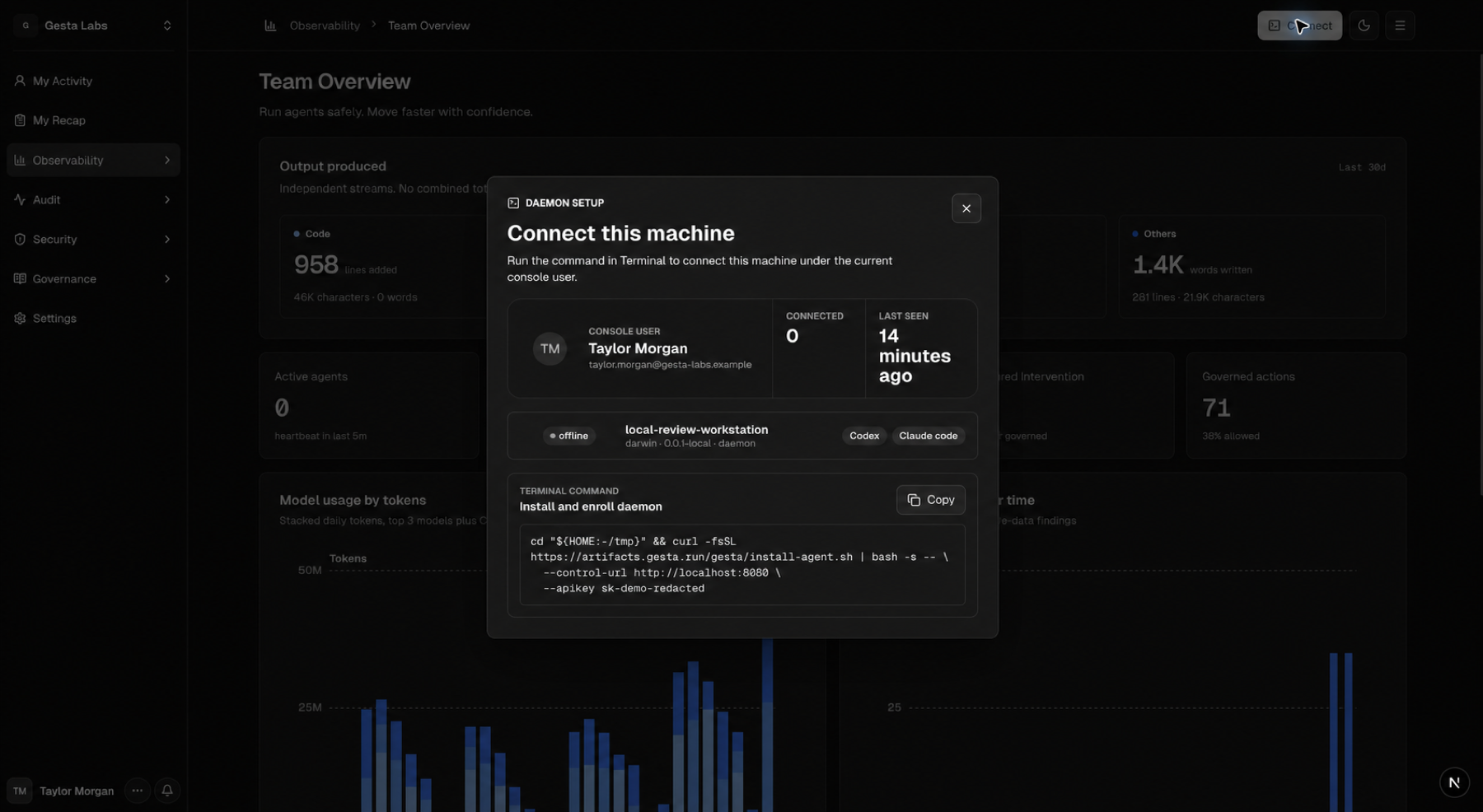
The generated token is user-bound. Do not send the command through chat, paste it into a ticket, or reuse another employee's command.
What the installer changes
The installer:
- places the Gesta runtime under
~/.gesta; - saves the organization connection for the current user;
- configures supported Codex or Claude Code integrations;
- starts a background runtime when the platform supports it;
- keeps local state writable by the employee who owns the installation.
It does not replace the AI agent or modify project source files.
On macOS, Gesta reports Codex Desktop separately from the Codex command-line integration and shows the application bundle version in machine details.
Existing session history
The first successful runtime scan establishes a baseline from the current local agent state. Gesta does not upload sessions that already existed before that baseline. New sessions and new or changed content observed after connection can appear in Gesta.
This boundary avoids unexpectedly importing an employee's historical agent work. To verify a new installation, start a new session or continue a safe session after the runtime is connected.
Verify the runtime
Run:
~/.gesta/bin/gesta-agent statusThen open Observability → Agents in the Console. Confirm:
- the expected hostname is present;
- the machine belongs to the current employee;
- the detected agent integrations are listed;
- the status is healthy or connected;
- Last seen updates after the runtime starts.
Owners can open a machine row to inspect its endpoint, version, adapters, and recent sessions. See Manage the agent fleet for the complete fleet and detail workflow.
Verify activity
Start a new agent session and complete a safe task. Open My Activity and confirm that the session appears under your user.
Some session details depend on the integration and actions used. A session may include repositories, tools, work type, token usage, safety checks, and evidence.
The new session may appear in My Activity without producing an immediate Recap item. See Understand daily recaps for the separate generation and selection rules.
Update the runtime
Runtime update behavior depends on the organization's configured upgrade mode. The runtime can report an available update, apply a supported automatic update, or remain on the installed version. Re-running the current Connect command reinstalls the runtime for the same employee and refreshes supported integrations.
After updating, run gesta-agent status and confirm the new version in the
Console.
Owners can review organization-wide connection health and runtime versions in Manage the agent fleet.
Common connection problems
See Troubleshooting if:
- the installer cannot reach Gesta;
- the machine appears under the wrong employee;
- the Console shows the runtime as degraded;
- a supported agent does not receive organization settings;
- new sessions do not appear in My Activity;
- a session appears in My Activity but no daily Recap is available.