

Getting started
Connect your first agent, publish an organization standard, and verify the result.
This guide takes you from an empty Gesta organization to a connected employee agent with its first organization standard.
You will:
- connect a machine to Gesta;
- confirm the agent is online;
- create an Organization Library rule;
- test that the standard reaches the agent;
- review the resulting activity.
Before you begin
You need:
- access to your organization's Gesta Console;
- Codex CLI, Codex Desktop, or Claude Code installed on the machine you want to connect;
- permission to run a command in the local terminal;
- an Owner role to create organization-wide rules.
Members can connect their own machines and review their own activity. Owners can also manage organization rules and review team-wide activity.
1. Sign in to Gesta
Open your organization's Gesta Console and sign in with your company identity. Confirm that the organization shown in the Console is the one you intend to join.
2. Connect your machine
Select Connect in the Console. Gesta prepares a user-bound connect token and displays an installation command for the current user.
- Copy the generated command.
- Open Terminal on the machine that runs Codex or Claude Code.
- Run the command as the same operating-system user who runs the AI agent.
- Follow any prompts from the installer.
Do not share the generated command. Its connect token is associated with your Gesta user.
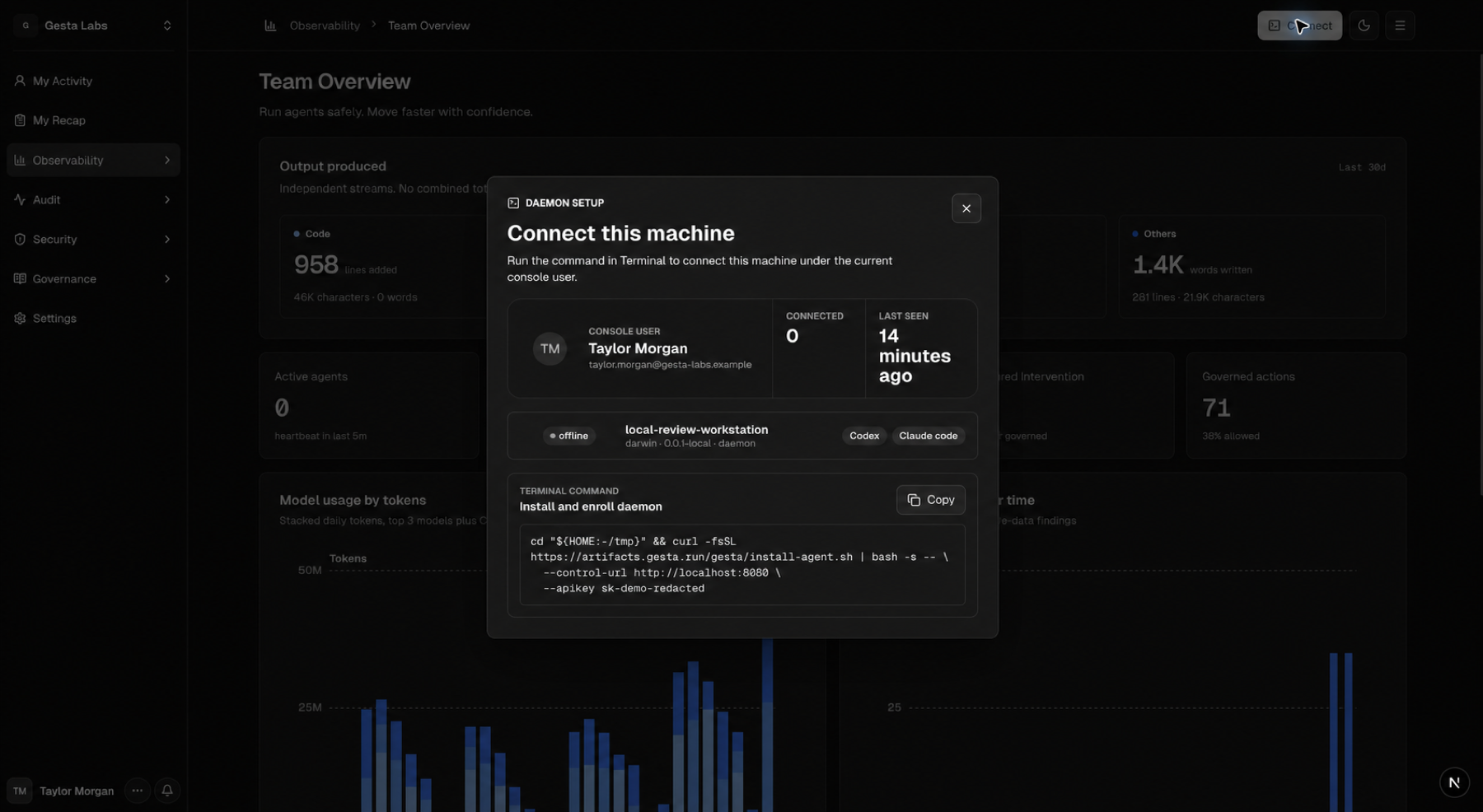
The installer downloads the Gesta runtime, configures supported agent
integrations, stores connection state under ~/.gesta, and starts the runtime
in the background when the platform supports it.
3. Verify the connection
In Terminal, run:
~/.gesta/bin/gesta-agent statusThen return to the Console. The connected machine should appear under Observability → Agents with a healthy or connected status.
If the machine does not appear, see Troubleshooting.
4. Create your first organization standard
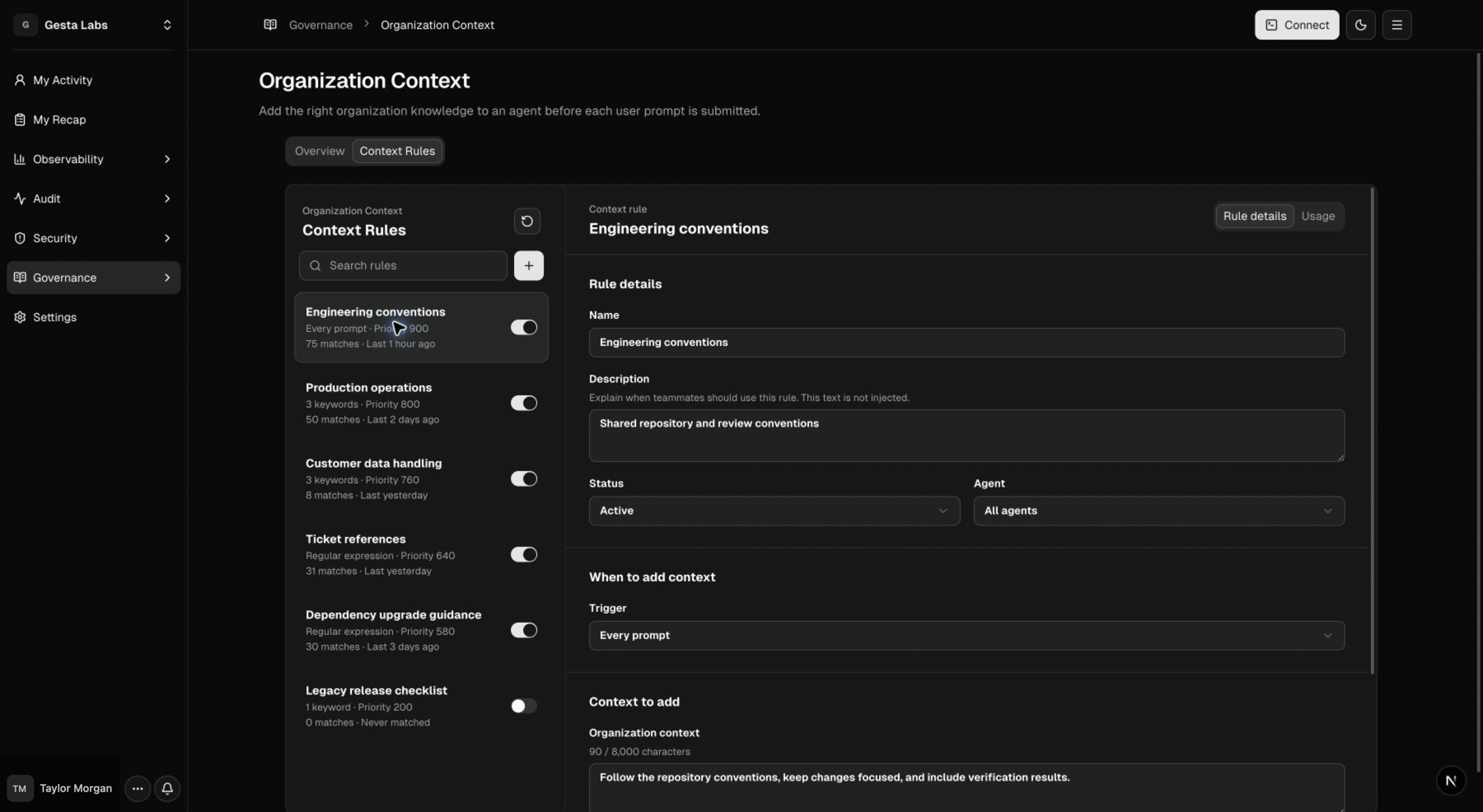
Open Governance → Organization Library, select Context Rules, then use the New rule action.
Create a simple rule for accurate completion reporting:
| Field | Value |
|---|---|
| Name | Accurate completion reporting |
| Status | Active |
| Agent | All agents |
| Trigger | Every prompt |
| Priority | 1000 |
| Context | Separate verified facts, inferences, plans, and unverified risks. Do not claim a task completed unless the result was verified. |
Save the rule.
5. Test the rule
Start a new Codex or Claude Code session and ask the agent to inspect a small, safe task. Ask it to report:
- what it verified;
- what it inferred;
- what remains unverified.
The response should follow the organization standard without requiring the employee to restate it in the prompt.
6. Review the activity
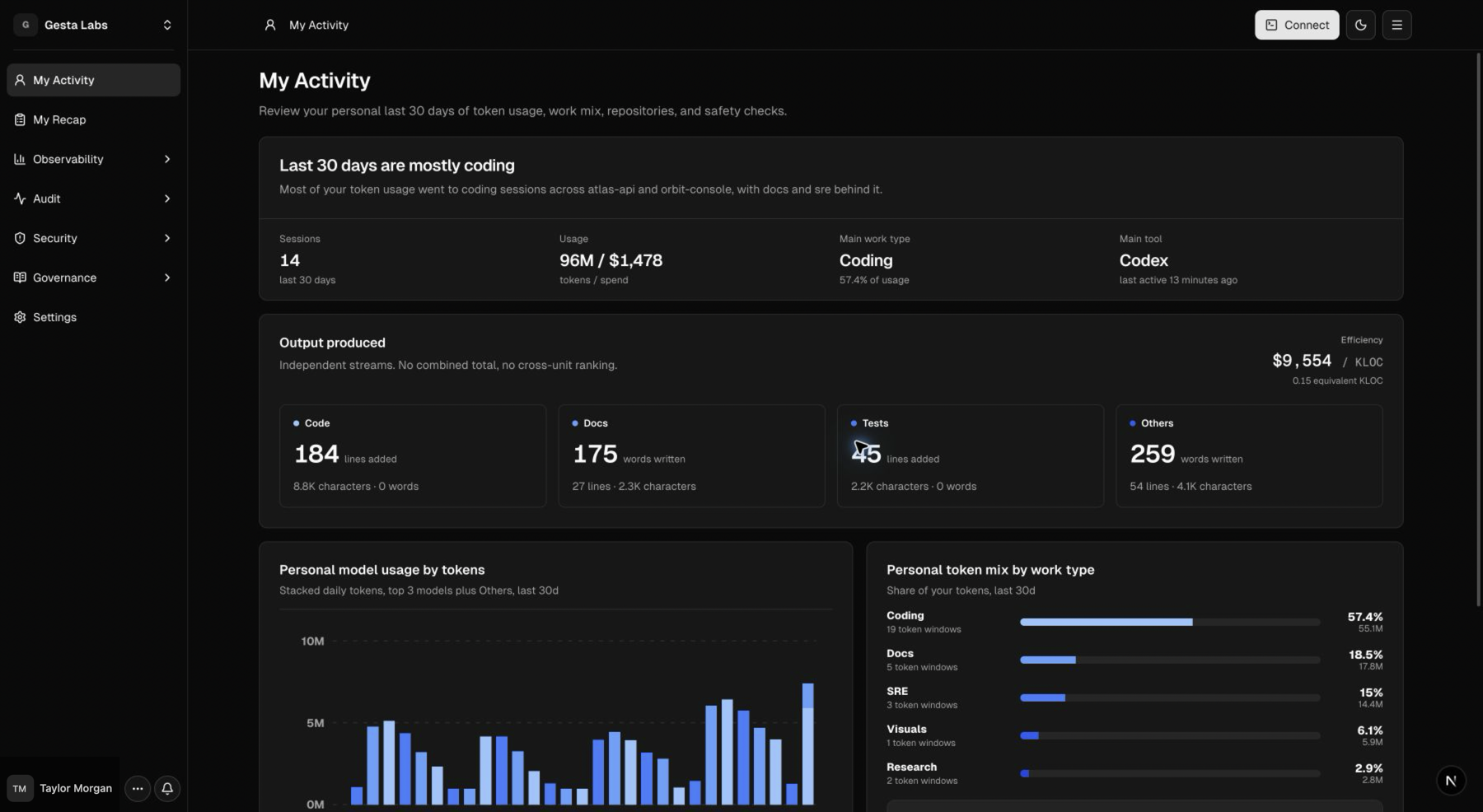
Open My Activity to review the new work. Depending on the connected agent and task, Gesta may show the agent used, repository, work type, token usage, safety checks, produced output, and recent work contexts.
Owners can also open Audit → Team Activity to review activity by employee.
My Recap is intentionally separate from the session view. A session can appear in My Activity without producing a Recap item. See Understand daily recaps for the selection and timing rules.
Next steps
- Plan a safe team rollout with Roll out Gesta to your team.
- Invite employees in Manage members and roles.
- Define standards in Organization Library.
- Adapt a starting point from Context Rule recipes.
- Protect commands with Operational Policies.
- Protect prompt data with Sensitive Data.
- Review outcome summaries in Understand daily recaps.