

Manage the agent fleet
Understand connected machines, connection health, integrations, and runtime updates.
The Agents page gives Owners a current inventory of employee machines enrolled in Gesta. Use it to verify onboarding, find machines that need attention, and confirm that supported AI agent integrations are available. On macOS, Codex CLI and Codex Desktop are reported separately.
Read the fleet summary
The summary highlights:
- Online agents: machines currently reporting to Gesta;
- Total agents: all machines enrolled in the organization;
- Human users: employees represented by those machines;
- Needs attention: machines with a connection or update issue to review.
A machine can remain in the inventory while it is offline. Use the latest heartbeat and recent sessions to distinguish a temporarily idle machine from an onboarding or runtime problem.
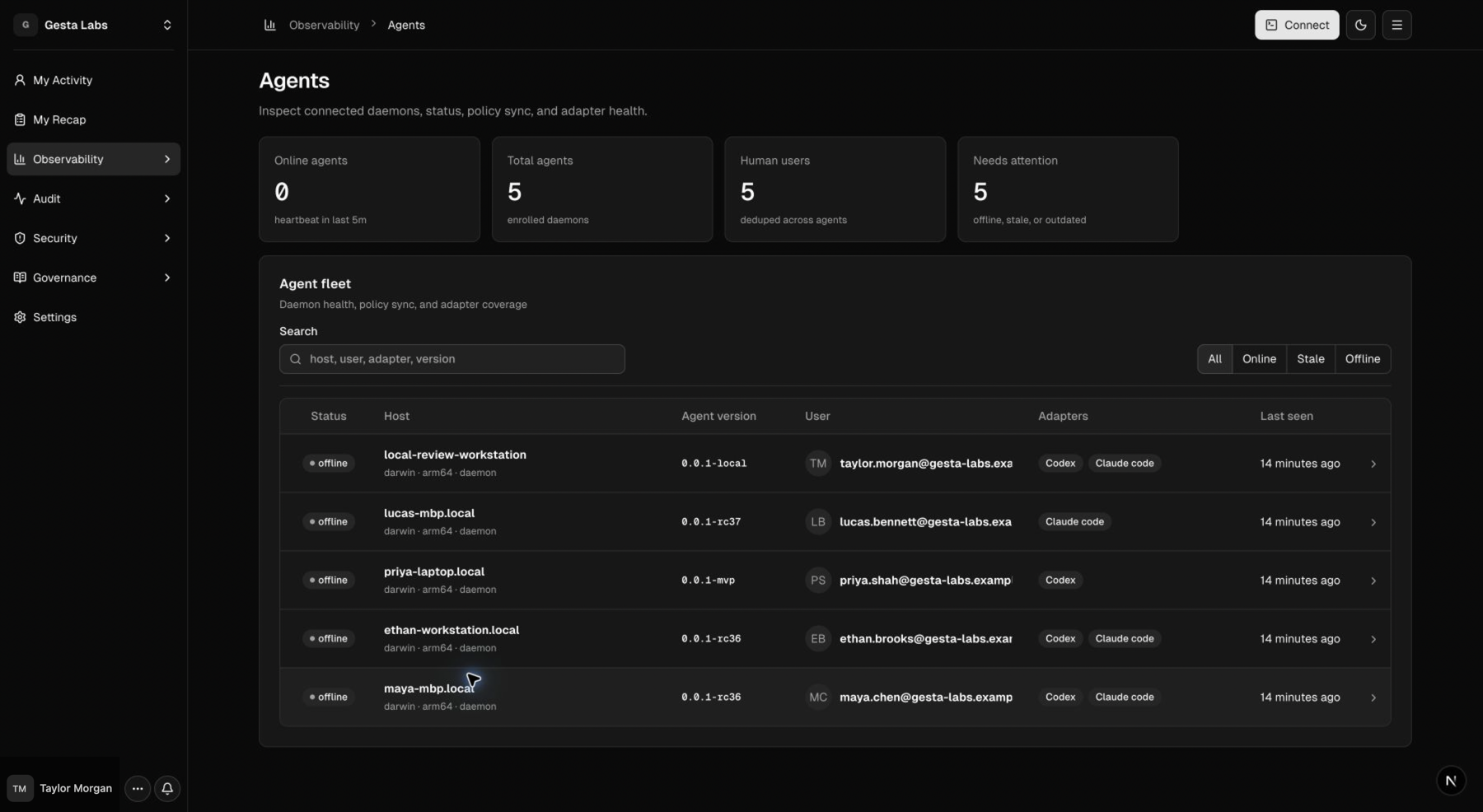
Find a machine
Search by hostname, employee, agent integration, or runtime version. Use status filters when you need to:
- confirm that a newly onboarded employee is connected;
- find machines that have stopped reporting;
- identify older runtime versions;
- verify which machines detect Codex CLI, Codex Desktop, or Claude Code;
- narrow an incident review to a specific employee or host.
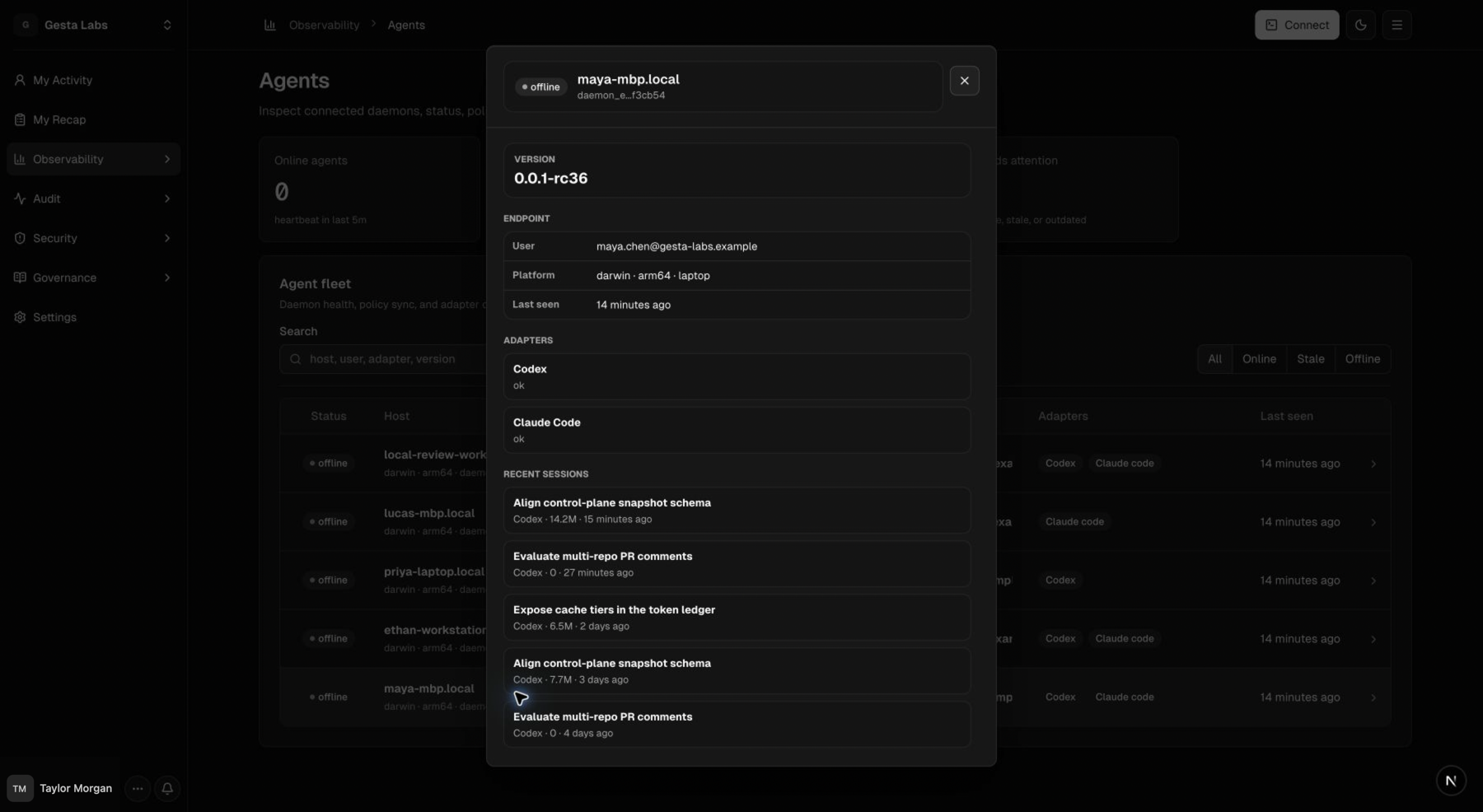
Review machine details
Open a machine to review:
- employee ownership;
- hostname and platform;
- connection status and last seen time;
- installed runtime version and available update;
- detected agent integrations;
- recent sessions.
Update a runtime
When a machine needs a manual update, ask the employee to run the latest installation command from the Connect dialog on that machine. Automatic behavior depends on the organization upgrade mode. Then:
- start a new supported agent session;
- refresh the Agents page;
- confirm the expected runtime version;
- verify a recent heartbeat and session.
The organization can also choose an upgrade mode in Organization settings.
Investigate a machine that needs attention
Check the following in order:
- Is the machine expected to be active?
- Is the employee signed in to the intended organization?
- Does the runtime process start successfully?
- Is the supported AI agent installed and detected?
- Does a new session appear after the employee sends a prompt?
- Is an update available?
Do not delete or reassign an agent record until you have confirmed the exact machine, its owner, and the expected impact. For connection-specific steps, see Troubleshooting.
Fleet hygiene
Review the fleet regularly to find:
- machines assigned to inactive members;
- duplicate or renamed hosts;
- versions that are no longer current;
- employees who enrolled but never completed a session;
- machines that have not reported for an unusual period.
Use fleet status as an operational signal, not as an employee performance score.